

LinkedIn Carousel Size: 1080x1080px (Exact Specs for 2026)
The recommended LinkedIn carousel size is 1080x1080px (square) or 1080x1350px (portrait). Get the exact specs, safe zone, and PDF export limits for 2026.
ViralBrain Team · Published: August 14, 2026 · Updated: August 15, 2026
The recommended LinkedIn carousel size is 1080 x 1080 pixels for a square carousel, or 1080 x 1350 pixels if you want the portrait format that fills more of a phone screen. Get the size wrong and LinkedIn either letterboxes your slides with dead space or crops the edges when the file renders in the feed.
This guide gives you the exact pixel dimensions first, then the safe zone for text and logos, the PDF export limits LinkedIn actually enforces, and the mistakes that make a technically correct file still look wrong once it is live. Everything below is checked against LinkedIn's own document-upload specs, not guessed from how a slide looks on one device. If you also need the full breakdown on structure and content, not just sizing, see the complete LinkedIn carousel guide, or see the sizes in use on real posts in 4 real LinkedIn carousel examples.
Automate your LinkedIn for 30 days
The short answer
Build your carousel at 1080 x 1080 pixels (square, 1:1) or 1080 x 1350 pixels (portrait, 4:5), export it as a single PDF, and keep the file under 100 MB. Square is the safer default: it renders consistently across desktop and mobile. Portrait trades that consistency for more visible height on a phone screen, where most carousel views happen.
| Spec | Value |
|---|---|
| Square carousel | 1080 x 1080 px (1:1) |
| Portrait carousel | 1080 x 1350 px (4:5) |
| File format | PDF (also accepts PPT, PPTX, DOC, DOCX) |
| Maximum file size | 100 MB |
| Maximum pages | 300 |
| Practical slide count | 8 to 12 slides |
| Safe zone margin | About 80px (10%) from every edge |
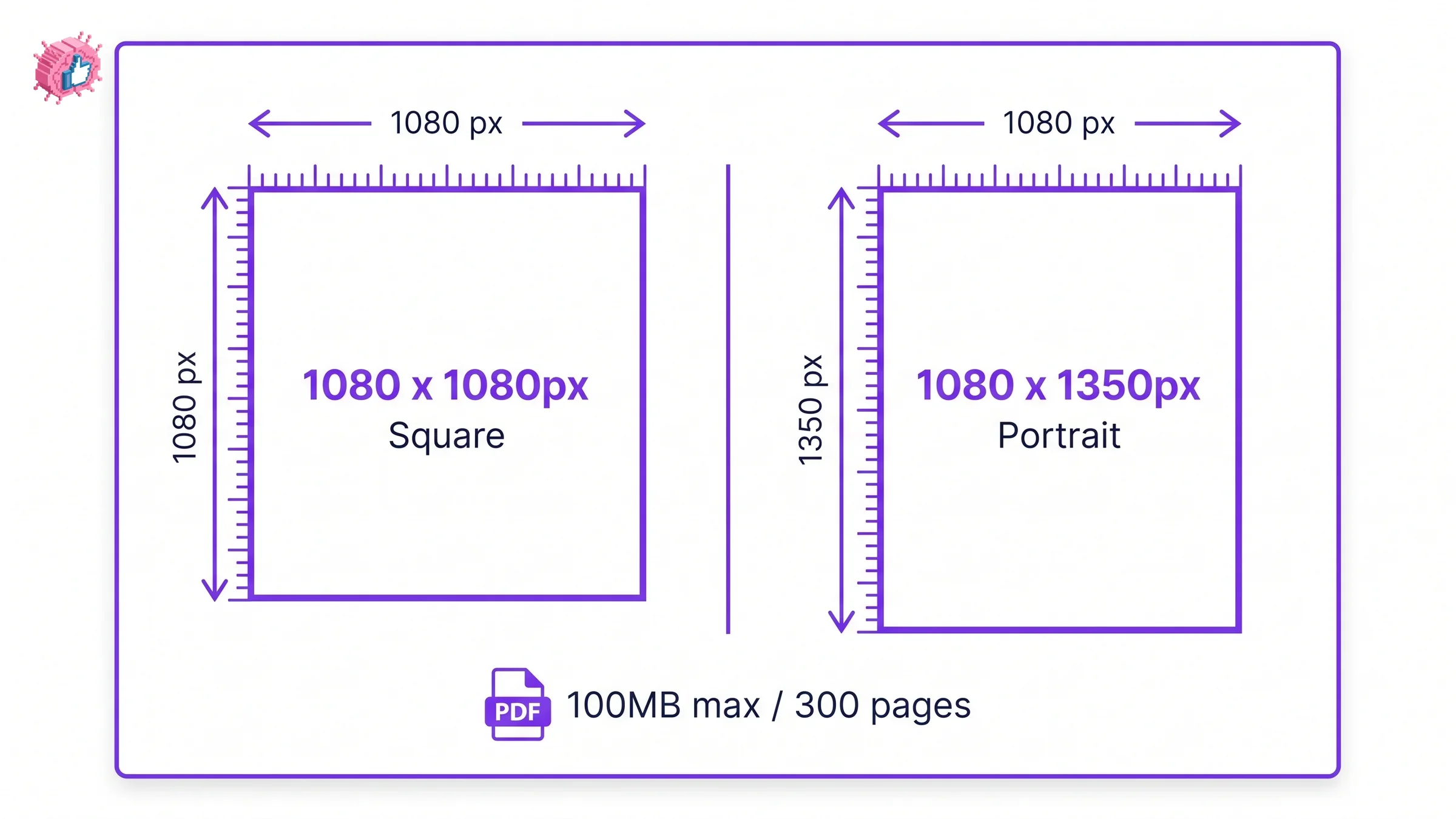
LinkedIn carousel size by format
Square carousel: 1080 x 1080px
A 1:1 square is the format LinkedIn's own document viewer was built around, and it is the size that looks correct whether someone opens your carousel on a laptop or a phone. If you are publishing your first carousel, or publishing across a mix of desktop-heavy and mobile-heavy audiences, start here.
Portrait carousel: 1080 x 1350px
A 4:5 portrait slide takes up noticeably more vertical space in a mobile feed, where the majority of carousel views happen. The tradeoff is that the extra height can look cropped or oddly framed if someone opens the same file on a desktop browser. Choose portrait when you know your audience is mobile-first and you want the slide to dominate more of the screen on the scroll.
Feed thumbnail: your first slide is the only one anyone chooses to open
Before a viewer swipes through anything, LinkedIn shows just the first page of your PDF as a static thumbnail in the feed. That single slide has to work on its own: a large, readable headline and enough visual contrast to stop a scroll, with no assumption that the viewer has seen slide two yet. Everything you put on later slides only gets seen if the first one earns the tap.
PDF export: file size, page count, and format
LinkedIn's document-upload limit is 100 MB and 300 pages, and it accepts PDF, PPT, PPTX, DOC, and DOCX files, with PDF recommended because it renders identically across devices. Those are LinkedIn's ceilings, not a target: a well-designed carousel of 8 to 12 slides, exported as PDF, typically lands well under 5 MB. Bigger and slower to load doesn't help completion rate, and a carousel someone doesn't finish swiping through doesn't get credit for the dwell time that makes the format work.
LinkedIn carousel safe zone
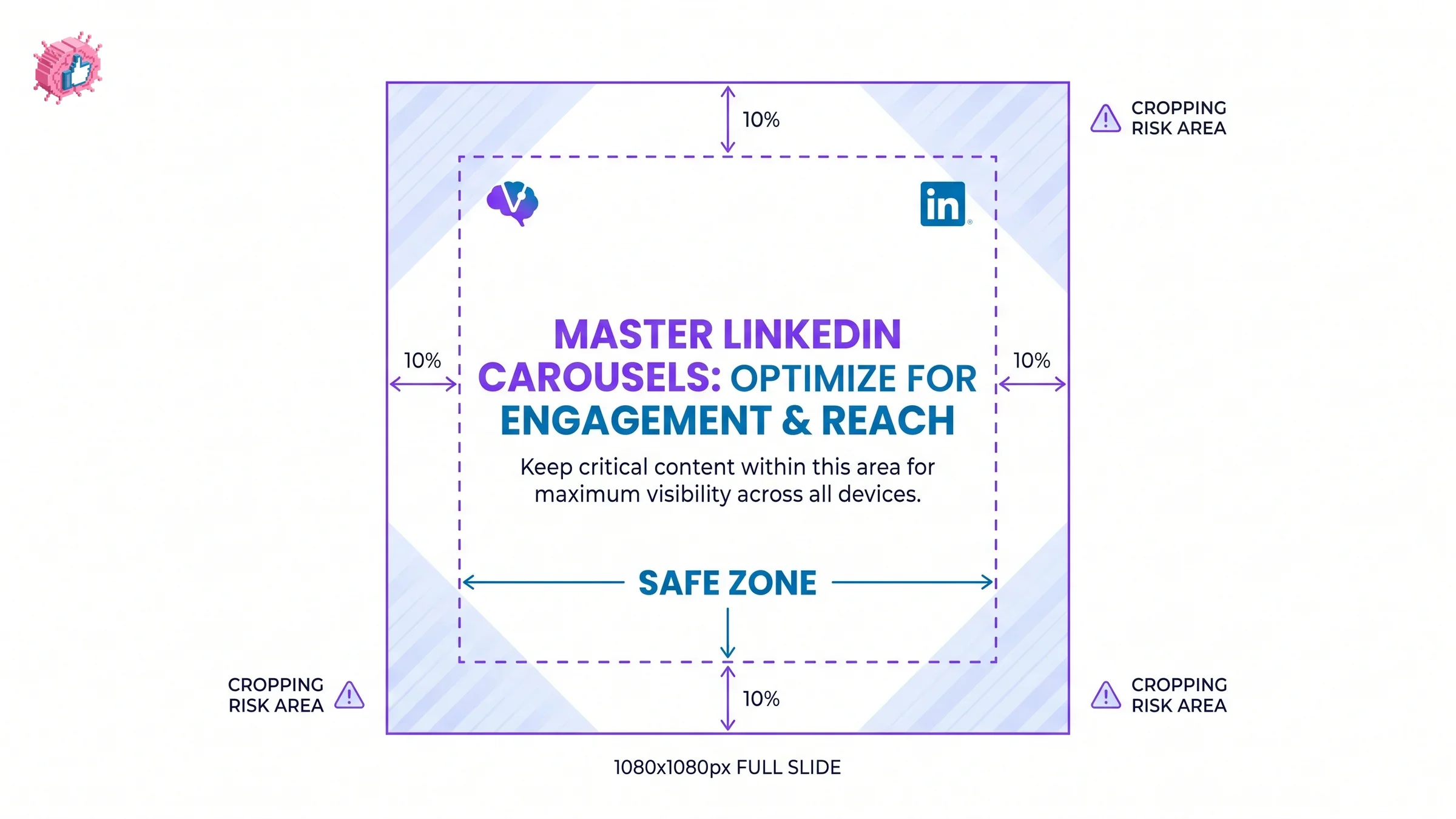
LinkedIn doesn't publish an official safe-zone spec for document posts, but keep this rule anyway: leave roughly 80px, or about 10% of the slide, clear of text, logos, and faces on every edge. Two things cause the cropping this protects against. First, LinkedIn's document viewer occasionally trims a thin margin depending on device and zoom level, so content flush against the edge is the first thing to disappear. Second, anything you place too close to a corner reads as cramped even when it technically fits, especially once the slide shrinks down to phone width.
Practical safe-zone rules:
- Center your headline text, don't hug the edges. A title that starts 100px from the left margin survives a crop that a title starting at 10px does not.
- Keep your logo or watermark away from all four corners, not just the one you'd normally use. Corner placement is the most common thing lost to cropping.
- Leave more margin on portrait slides than square ones. The taller a slide is, the more variation there is in how different devices render its top and bottom edges.
How to export your carousel at the right size
- Design at 1080 x 1080px or 1080 x 1350px, not a random canvas size you resize later. Starting at the wrong dimensions and scaling up is what introduces blur.
- Set every slide to the same page size. LinkedIn expects a PDF with consistent dimensions throughout; mixed page sizes in one file cause inconsistent rendering.
- Export as PDF at full resolution, not a compressed preview export. Check the exported file size before uploading; if it's already near 100 MB before upload, drop image quality rather than page count.
- Upload as a document post, not an image or gallery post. Carousels only render as swipeable slides when uploaded through LinkedIn's document option.
If you'd rather skip manual design entirely, the free LinkedIn carousel generator builds correctly sized slides and writes the cover, content, and CTA copy for you.
Automate your LinkedIn for 30 days
Common LinkedIn carousel size mistakes
| Mistake | Why it hurts | Fix |
|---|---|---|
| Designing at an arbitrary canvas size | Forces LinkedIn to scale and crop unpredictably | Start at 1080 x 1080px or 1080 x 1350px |
| Mixed page sizes within one PDF | Inconsistent rendering slide to slide | Set every page to the same dimensions before export |
| Text or logo flush against the edge | First thing cropped on smaller screens | Keep an 80px (10%) safe-zone margin |
| Weak or cluttered first slide | It's the only slide anyone sees before deciding to swipe | Design the cover slide as a standalone image |
| Oversized PDF export | Slower load, lower completion rate | Export at full resolution but keep the file well under 100 MB |
| Uploading as an image gallery instead of a document | Loses the swipeable carousel format entirely | Upload through LinkedIn's document post option |
How we verified these specs
The pixel dimensions, file format list, and 100 MB / 300-page limits above come from LinkedIn's own document-upload help pages, checked in 2026, not from a single test post on one account. The safe-zone guidance is a practitioner convention, not an official LinkedIn number, because LinkedIn has never published one; we've flagged it as such rather than presenting it as an official spec.
LinkedIn carousel size vs other LinkedIn image specs
| Image type | Recommended size | Aspect ratio |
|---|---|---|
| Carousel (square) | 1080 x 1080 px | 1:1 |
| Carousel (portrait) | 1080 x 1350 px | 4:5 |
| Profile picture | 400 x 400 px | 1:1 |
| Banner / cover | 1584 x 396 px | 4:1 |
| Shared post image | 1200 x 627 px | 1.91:1 |
For the banner dimensions and safe zone, see the LinkedIn banner size guide. For every other image format on the platform in one place, see the LinkedIn image sizes guide or the free image size checker tool.
Which LinkedIn carousel size should you use?
Use square (1080 x 1080px) as your default for 2026, and switch to portrait (1080 x 1350px) only when you know your audience is mostly on mobile.
- Posting to a mixed desktop-and-mobile audience → square, 1080 x 1080px.
- Posting to an audience you know is mostly on mobile → portrait, 1080 x 1350px.
- Repurposing a blog post or existing PDF deck → square, since it's the format most design tools default to and the easiest to keep consistent across slides.
- Unsure which performs better for your audience → start square, publish a few carousels, then compare completion rate on square versus a portrait test before committing to one format.
- Building carousels regularly and want the sizing handled for you → the carousel generator exports at the correct dimensions automatically.
FAQ
What is the recommended LinkedIn carousel size in 2026?
The recommended LinkedIn carousel size is 1080 x 1080 pixels for a square carousel or 1080 x 1350 pixels for a portrait carousel. Export the finished design as a single PDF and upload it as a document post; LinkedIn accepts files up to 100 MB and 300 pages, though 8 to 12 slides is the practical sweet spot.
What is the LinkedIn carousel safe zone?
The LinkedIn carousel safe zone is roughly 80px, or about 10% of the slide, kept clear of text, logos, and faces on every edge. LinkedIn hasn't published an official number, but content placed flush against the edge is what gets cropped first when the file renders on a smaller screen.
Should I use a square or portrait LinkedIn carousel?
Use square (1080 x 1080px) if your audience is a mix of desktop and mobile viewers, since it renders consistently on both. Use portrait (1080 x 1350px) if you know most views happen on a phone and want the slide to take up more of the screen.
Can I upload a PowerPoint file instead of a PDF for a LinkedIn carousel?
Yes. LinkedIn accepts PPT, PPTX, DOC, and DOCX files in addition to PDF for document posts, but PDF is recommended because it renders identically across every device, while a PowerPoint file can shift depending on the viewer's fonts and software.
How many slides should a LinkedIn carousel have?
LinkedIn allows up to 300 pages in a single document upload, but 8 to 12 slides is the practical range: long enough to develop one idea properly, short enough that most viewers swipe all the way through.
What happens if my carousel isn't the recommended size?
LinkedIn still accepts the upload, but a file outside 1080 x 1080px or 1080 x 1350px gets scaled to fit the viewer, which can introduce blur or letterboxing depending on how far off the original dimensions were. Wrong aspect ratios are more noticeable than wrong resolution.
Sources: LinkedIn Help: Upload and share documents, LinkedIn Help: Document uploads FAQ, Decktopus: LinkedIn carousel size and dimensions guide.
Automate your LinkedIn for 30 days
ViralBrain plans, writes, and schedules your LinkedIn content, using official LinkedIn APIs so your account stays safe.
- Official LinkedIn APIs, no risk of ban
- You approve every post before it goes live
- Cancel anytime
Keep reading

6 best LinkedIn comment generators in 2026
Six LinkedIn comment generators compared, with pricing checked on each vendor's own page on 3 September 2026 and the ones that publish nothing named as such.

Buffer Alternatives: 7 Better Tools for LinkedIn in 2026
Buffer charges per channel and treats LinkedIn like every other network. Here are 7 Buffer alternatives compared on pricing, AI, and LinkedIn depth.
Dripify alternatives: 7 best LinkedIn outreach tools in 2026
Compare 7 Dripify alternatives for LinkedIn outreach in 2026: Waalaxy, HeyReach, Expandi, and more, ranked on pricing, account safety, and features.