

LinkedIn Profile Picture Size & Best Practices (2026)
The recommended LinkedIn profile picture size is 400x400 pixels (1:1, max 8MB). Get the exact specs, circular-crop framing tips, and mistakes to avoid.
Your profile photo is the single most-viewed image on your LinkedIn account, and it renders everywhere: your profile, every post you publish, every comment you leave, and every search result you appear in. Get the LinkedIn profile picture size wrong and the platform either upscales a blurry crop or cuts your face out of the frame. Get it right and you set the foundation for a profile that actually earns clicks. Once the photo is sorted, the full LinkedIn profile optimization guide covers the headline, banner, and about section that turn those clicks into followers.
The stakes are not cosmetic. LinkedIn's own data shows profiles with a photo get up to 21x more profile views and 9x more connection requests than profiles without one. A pixelated or badly framed photo undercuts all of that before anyone reads your headline.
This guide gives you the exact dimensions and file specs first, then the circular-crop framing rules, the best practices that separate a strong headshot from a weak one, and the common mistakes that quietly cost you views.
Automate your LinkedIn for 30 days
The short answer
The recommended LinkedIn profile picture size is 400 x 400 pixels, a 1:1 square, saved as JPG or PNG under 8 MB. That is the smallest size that stays sharp. For crisp rendering on high-resolution (retina) screens, upload at 640 x 640 pixels or larger and let LinkedIn scale it down.
| Spec | Value |
|---|---|
| Recommended size | 400 x 400 px |
| Minimum size | 300 x 300 px |
| Best-quality upload | 640 x 640 px or larger |
| Aspect ratio | 1:1 (perfect square) |
| Maximum file size | 8 MB |
| Supported formats | JPG, PNG |
| Display shape | Circle (corners cropped off) |
The one rule that trips people up: upload a square. LinkedIn crops your photo into a circle, so any rectangular image loses its edges and can decapitate your headshot. Start with a 1:1 square and frame inside it. To confirm your file is square and within limits before you upload, run it through the LinkedIn image size checker.
LinkedIn profile picture size: full specs
Here is every dimension that matters, and why each one is set where it is.
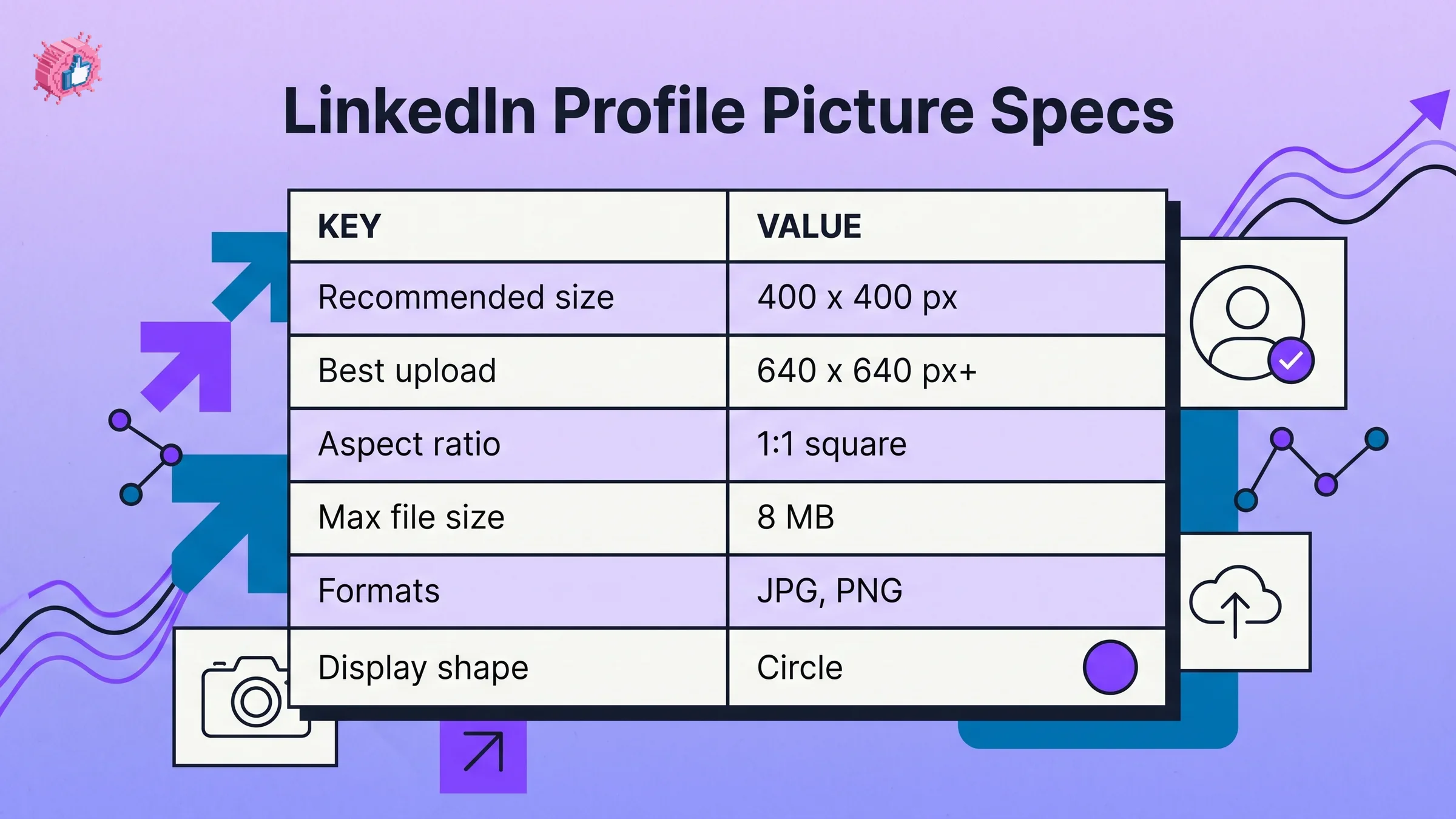
- Aspect ratio: 1:1. LinkedIn only accepts square profile photos and then masks them into a circle. Upload anything wider or taller and you lose control of what gets cropped.
- Resolution: 400 x 400 px minimum recommended. Below 300 x 300 px LinkedIn is forced to upscale, which introduces blur and blockiness. There is no downside to going larger.
- Upload size: 640 x 640 px or more. Higher source resolution gives LinkedIn clean pixels to downscale from, which keeps your photo sharp on retina displays and when it is enlarged in a profile preview.
- File size: 8 MB max. Plenty of headroom. A well-compressed 640 px JPG at 85 to 95% quality lands well under 1 MB with no visible loss.
- Format: JPG or PNG. Use PNG if your photo has flat color or graphic edges, JPG for standard photographic headshots. Both render identically at this size.
Display note: the photo you upload is not shown at full size. On a desktop profile it renders inside a circle at roughly 200 pixels, and it shrinks to about 48 pixels in the feed and comments. That range is exactly why you upload high resolution and frame tight: your face has to read clearly at 48 pixels and stay sharp at 200. For the full set of every LinkedIn image spec in one place (posts, documents, ads), use the LinkedIn image sizes tool.
How the circular crop changes your framing
The circular mask is the detail most guides skip, and it is the one that ruins the most photos. LinkedIn takes your square upload and cuts everything outside the inscribed circle. The four corners disappear.
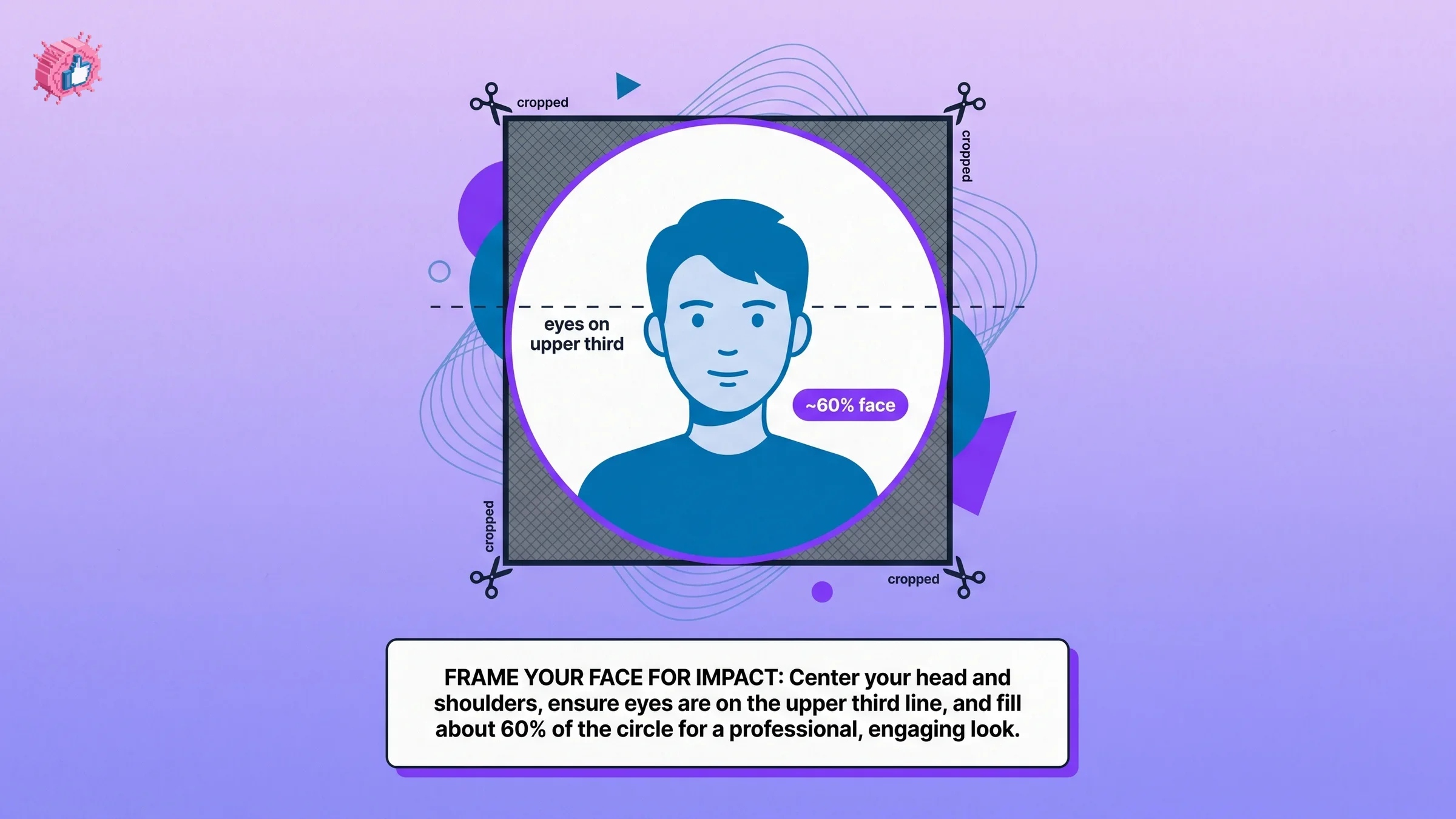
That means the usable area is smaller than the square you uploaded. Anything you place near a corner (your shoulder, a logo, part of your face) is gone. Frame as if the corners do not exist.
Practical framing rules for the circle:
- Fill about 60% of the frame with your face. Head and the top of your shoulders, centered. Too far back and you become an unrecognizable dot at 48 pixels; too tight and the crop clips your chin or forehead.
- Center your eyes on the upper third. The circle crops top and bottom corners, so leave breathing room above your head and keep your eyes off the exact center line.
- Keep the important content away from all four corners. Test your crop by imagining a circle drawn inside the square. If anything you care about sits outside it, recompose.
- Leave a small margin. Do not let the top of your head touch the frame edge. A little space reads as intentional and professional.
Profile picture best practices
Specs get you a sharp image. These best practices get you a photo that actually performs. Members with a professional headshot are viewed far more often, and the quality of the shot, not just its presence, drives the difference.
- Use a real, recent headshot of just you. No group photos, no cropped-out ex, no photo from ten years and one haircut ago. Recruiters and prospects need to recognize you.
- Show your face clearly, no sunglasses or hats. Eyes visible, expression open. A genuine smile or approachable neutral look outperforms a stiff, formal stare for most B2B audiences.
- Get the lighting right. Soft, even, front-facing light. Natural window light works. Avoid harsh overhead shadows and backlighting that turns you into a silhouette.
- Use a clean, uncluttered background. A plain wall, a soft blur, or a simple neutral tone. The background should not compete with your face, especially at small sizes.
- Dress for your industry. Match how you would show up to meet a client or interviewer in your field. Consistency between your photo and your positioning builds trust.
- Fix contrast and color before uploading. A slightly brighter, higher-contrast image reads better at 48 pixels than a flat, muted one.
A strong headshot is one input into a profile that converts. To check whether the rest of your profile holds up (headline, banner, summary), run a free LinkedIn profile checker, and audit the photo itself with the LinkedIn photo checker.
Automate your LinkedIn for 30 days
Common mistakes to avoid
Most bad LinkedIn photos fail for the same handful of reasons. Avoid these and you are ahead of the majority.
| Mistake | Why it hurts | Fix |
|---|---|---|
| Uploading a rectangle | Circular crop clips your face or shoulders | Crop to a 1:1 square first |
| Image under 300 px | LinkedIn upscales it, creating blur | Upload at 400 px or larger |
| Face too small in frame | Unrecognizable at 48 px in feed | Fill ~60% of the frame with your face |
| Busy or dark background | Competes with your face, reads poorly small | Use a plain, well-lit backdrop |
| Group or event photo | Viewers cannot tell who you are | Use a solo headshot |
| Heavy filters or effects | Looks unprofessional and dates fast | Keep edits to light color and contrast |
| Logo or text in a corner | Cropped off by the circle mask | Keep all content inside the circle |
One more that is easy to miss: mismatched images across your profile. If your headshot, banner, and any post graphics use clashing styles and colors, your profile looks inconsistent. Keep a coherent visual identity across all of them.
Profile picture vs banner and the rest of your images
Your profile picture is one piece of a larger visual system. The two images people see first are the photo and the banner behind it, and they have very different specs.
| Image | Recommended size | Aspect ratio | Shape |
|---|---|---|---|
| Profile picture | 400 x 400 px | 1:1 | Circle |
| Banner / cover | 1584 x 396 px | 4:1 | Rectangle |
| Shared post image | 1200 x 627 px | 1.91:1 | Rectangle |
Because the banner sits directly behind your circular photo, plan the two together: keep important banner content (text, logos) away from the lower-left area where your profile picture overlaps. For the complete banner breakdown, including the safe zones, read our LinkedIn banner size guide. If you need to produce a banner that matches your headshot, the LinkedIn cover photo maker handles the exact dimensions for you.
For every other image format on the platform in one reference (carousels, link previews, company pages), see the full LinkedIn image sizes guide.
What this means for you
- Upload a 640 x 640 px square as your default. It exceeds the 400 px recommendation, stays under the 8 MB cap, and renders sharp on every screen. Confirm it is square and within limits before uploading.
- Frame for the circle, not the square. Fill about 60% of the frame with your face, center your eyes on the upper third, and keep everything out of the corners.
- Prioritize lighting and background over gear. A clean, well-lit solo headshot beats an expensive photo shot in a cluttered room.
- Match your photo to your banner. Plan both together so your profile reads as one coherent brand. Start with the LinkedIn banner size guide.
- Then get your content working. A great photo earns the click; your posts keep the audience. Generate posts with the LinkedIn post generator, draft them in your voice with the LinkedIn post creator, and keep a consistent cadence using the LinkedIn content calendar.
Your photo is the easiest high-impact fix on your profile. Set the size right once, frame it for the circle, and it works for you in every feed, comment, and search result. When you are ready to turn profile views into followers, ViralBrain helps you generate and schedule the posts that keep them coming back.
Sources: LinkedIn Help: Image specifications, LinkedIn Profile Picture Statistics 2026 (Morphed), LinkedIn Photo Size 2026 Guide (La Growth Machine), Best LinkedIn Headshot 2026 (Capturely).
FAQ
What size should a LinkedIn profile picture be?
The recommended LinkedIn profile picture size is 400 x 400 pixels, saved as a 1:1 square in JPG or PNG under 8 MB. For the sharpest result on high-resolution screens, upload at 640 x 640 pixels or larger. The minimum before LinkedIn starts upscaling and blurring the image is 300 x 300 pixels.
What is the maximum file size for a LinkedIn profile photo?
The maximum file size for a LinkedIn profile photo is 8 MB. That is generous: a well-compressed 640 pixel JPG at 85 to 95% quality lands well under 1 MB with no visible quality loss, so file size is rarely the limiting factor.
Why is my LinkedIn profile picture blurry?
The most common cause is uploading an image smaller than 300 x 300 pixels, which forces LinkedIn to upscale it and introduce blur. Re-upload a square image at 400 x 400 pixels or larger. Heavy compression or a low-resolution source photo can also cause softness.
What aspect ratio does a LinkedIn profile picture use?
LinkedIn profile pictures use a 1:1 (square) aspect ratio and are then cropped into a circle for display. Always upload a square image and frame your face inside the circular area, keeping important content away from the four corners that get cropped off.
Does a LinkedIn profile picture show as a circle or a square?
It displays as a circle. You upload a square file, and LinkedIn masks it into a circle everywhere it appears, from your profile down to a roughly 48 pixel version in the feed and comments. Anything in the corners of your square is cut off.
How much of the frame should my face fill?
Aim for your face to fill about 60% of the frame, showing your head and the top of your shoulders, centered. This keeps you recognizable when the photo shrinks to feed size and prevents the circular crop from clipping your chin or forehead.
Do LinkedIn profile pictures really affect profile views?
Yes. LinkedIn reports that profiles with a photo receive up to 21x more views and 9x more connection requests than profiles without one, and professional-quality headshots outperform casual snapshots. It is one of the highest-leverage changes you can make to a profile.
How do I check if my LinkedIn photo meets the specs?
Run your image through a free image size checker to confirm it is a square within the size limits, then use a LinkedIn photo checker to assess framing and quality. Both are free and require no account.
Automate your LinkedIn for 30 days
ViralBrain plans, writes, and schedules your LinkedIn content, using official LinkedIn APIs so your account stays safe.
- Official LinkedIn APIs, no risk of ban
- You approve every post before it goes live
- Cancel anytime
Keep reading
How to Log Out of LinkedIn on Desktop and in the App
How to log out of LinkedIn on desktop, on iOS and on Android, how to sign out of other sessions or all devices, and what Keep me logged in changes.
LinkedIn Two Step Verification: How to Turn It On and Off
LinkedIn documents it as two-factor authentication. How to turn it on and off on desktop and in the app, the two methods, and what to do if locked out.
How to Change Your LinkedIn Password
How to change your LinkedIn password on desktop, iOS, Android and a mobile browser, how to reset a forgotten one, and what the sign out control does.